

Add Signature Action: addSignature
The addSignature action is used to update a PDF document by adding a signature image, inserting a date, and marking the appropriate signatory where required.
This action works based on specific keywords present in the PDF. It allows you to safely process new or updated documents without affecting previously signed content.
Example:
A contract PDF contains:
- The word Dated where the date should appear
- The text Submitted by: followed by a blank line for a signature
- A signatory name with a checkbox next to it
When the automation runs:
- The current date is inserted at the “Dated” location.
- The signature image is added below “Submitted by:” if the space is blank.
- The checkbox next to the matching signatory name is marked (if not already selected).
If the same document is processed again, existing values are not overwritten.
Steps to Configure:
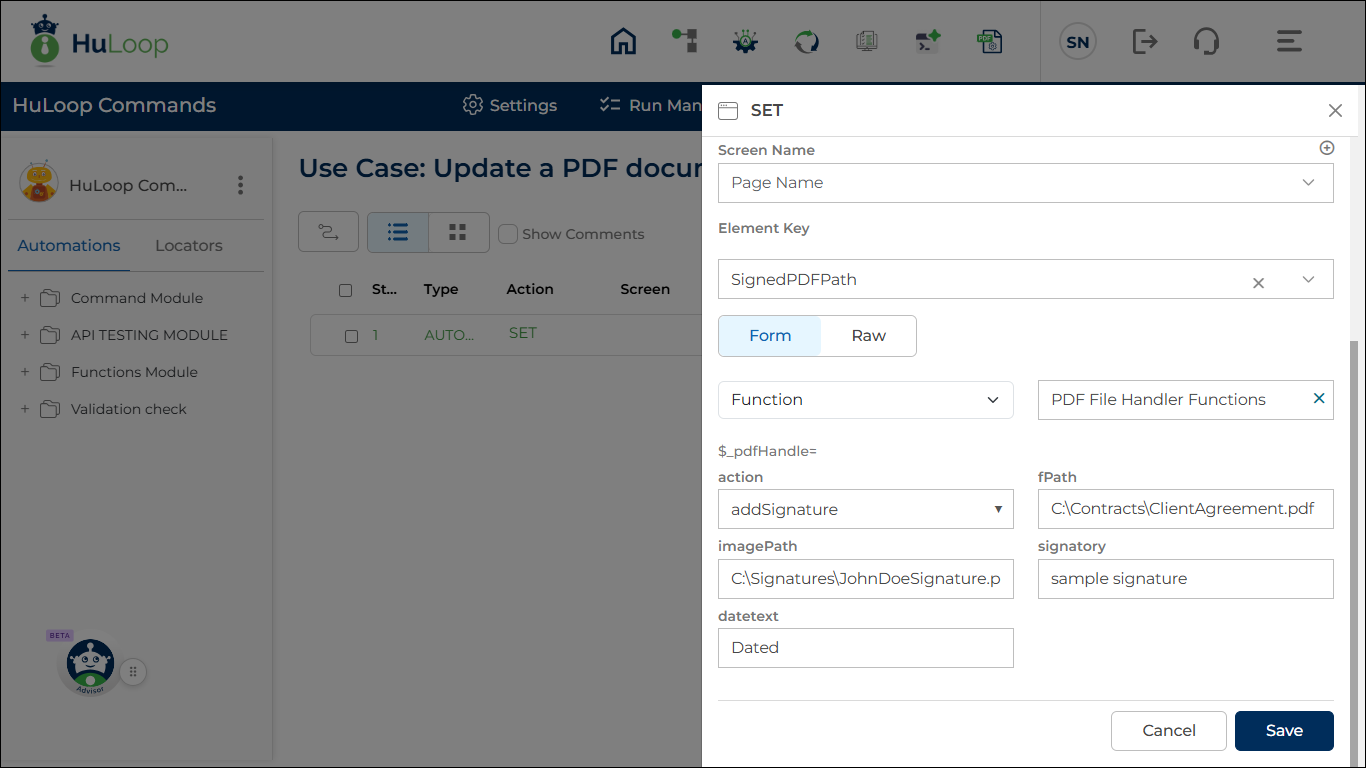
- Select SET from the Action dropdown.
- Enter a variable name in the Element Key field (for example, SignedPDFPath).
- This variable stores the path of the processed PDF file.
- Click Form, select Functions, and choose PDF File Handler Functions.
- In the action field, select addSignature.
- Provide the required parameters:
- fPath: Enter the full path of the PDF file to be updated.
Example: C:\Contracts\ClientAgreement.pdf - imagePath: Enter the full path of the signature image file.
Example: C:\Signatures\JohnDoeSignature.png - Signatory: Enter the exact name of the signatory as it appears in the PDF.
- DateText (if applicable): Enter the exact text used in the document to indicate where the date should be inserted (for example, Dated).
- fPath: Enter the full path of the PDF file to be updated.
- Click Save.
Note: Make sure the PDF file is not open in any application (such as a PDF viewer or editor) when the automation runs.
How the Action Works:
- The system looks for the exact text you provide in the document.
- The match must be exact. Even small differences in spelling, punctuation, or capitalization will not be recognized.
- If the exact text appears multiple times, the action updates each valid occurrence.
- Existing dates, signatures, or marked checkboxes are not replaced or duplicated.
This allows the same document to be processed multiple times without impacting previously completed sections.
Outcome on Execution:
- The current date is inserted at the exact matching “Dated” text (if configured).
- The signature image is added below “Submitted by:” if the space is blank.
- The checkbox next to the matching signatory name is marked if it is not already selected.
- Previously added values remain unchanged.
- The updated PDF path is stored in the variable defined in the Element Key field.
- You can reference this variable in later steps using:
${VariableName}
Example: ${SignedPDFPath}
Notes:
- Exact text match required: The text in the PDF must exactly match the value provided in the configuration.
For example, Dated is different from Dated: or DATED. - Multiple occurrences supported: If the same keyword appears multiple times in the document, each valid instance is processed.
- No overwriting of existing values:
- Dates already inserted are not replaced.
- Existing signature images are not overwritten.
- Checkboxes already marked remain unchanged.
- Use a clear signature image: Use PNG or JPG format with good resolution. A transparent background is recommended for best appearance.
- Ensure document structure is consistent: The PDF must contain:
- The exact date text
- “Submitted by:” followed by space for a signature
- The correct signatory name with a checkbox
If these elements are missing or formatted differently, the update may not be applied.